Connecting to a database
ExpManager keeps nothing of its own: the experiments, plates and labels it shows are all in a BacBuster database on a MySQL or MariaDB server - the same database BacBuster saves the scanned plates to, and Baclan reads them from.
Choosing a database
Click the yellow DATABASE label. The Database Connection window lists the servers, the users on each, and the databases each user can see.
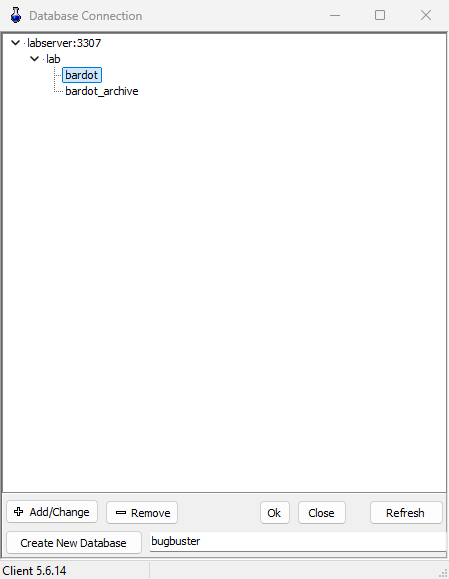
| Button | Does |
|---|---|
| Add/Change | Opens the Connection Editor for a new server, or for the one selected |
| Create New Database | Makes a database with the name in the box beside it, for the selected server and user, with the tables BacBuster and Baclan need |
| Remove | Forgets the selected server or user, after asking. The databases stay on the server |
| Refresh | Asks the servers again which databases each user can see |
| Ok | Uses the selected database. A double-click does the same |
| Close | Leaves things as they were |
The Connection Editor asks for the server's Host (name or address), its Port (usually 3306), the User and Password, and optionally a Host Short Name to show in place of the address. Test tries the connection; Ok adds it to the list.
The list is shared with BacBuster and Baclan on the same computer: a server added in one is there in the others.
Passwords are stored
The connections, passwords included, are kept in %APPDATA%\BaclAn\Servers.dat, so that
ExpManager can connect by itself at start-up. Use accounts with no more rights than they need:
planning plates needs the right to add and delete plates, not to change the database.
Database Setup
Database Setup, in the settings (the fork-and-spoon button), opens the Manager, for
whoever looks after the server. It logs in as the server's root user:
| Control | Does |
|---|---|
| Host, Port, Root Password, Connect | Log in to the server |
| Users, Global Privileges | The server's accounts and the selected one's rights |
| New User Name, Password | With Create Read Only User or Create Full Access User: make an account |
| Change Password, Delete User | For the selected user |
| Databases Read Only, Databases Full Access | Tick databases and click Read Only or Full Access to give the selected user those rights |
| Init | Recreates Service Table. Does NOT erase data. |
| Apply Updates (Full Access List) | Brings the ticked databases up to the current table structure |
| Update Colony Thumbs | Makes the small colony pictures in the ticked databases; Stop Update stops it |
These are accounts of the database server. The USER of ExpManager's window is something else: the name plates are filed under, kept in the database itself.