A tour of the window
The Baclan window is divided into horizontal bands. Drag the bars between them to change their sizes; Baclan remembers where you leave them.
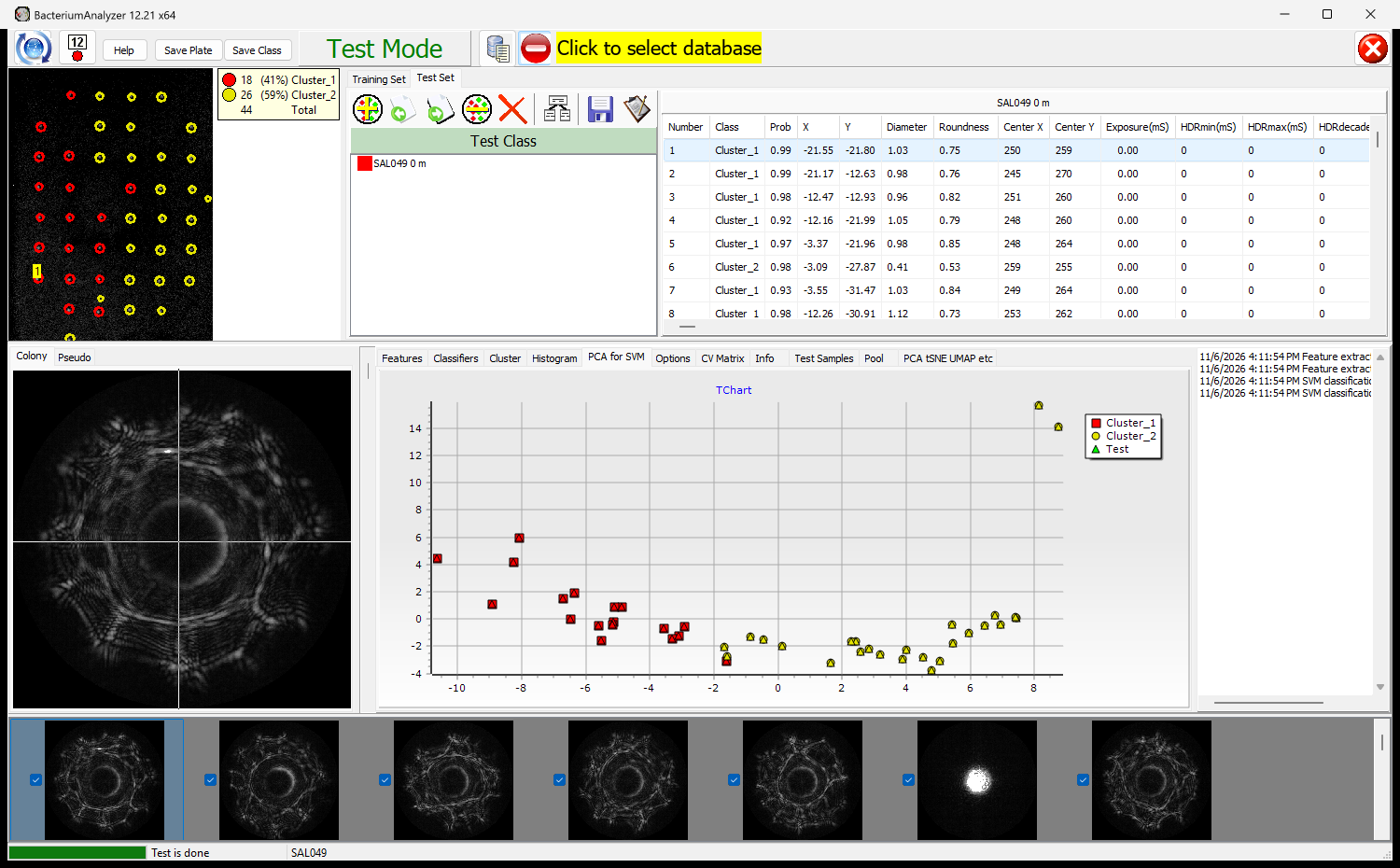
+----------------------------------------------------------------------------------+
|  Top toolbar: updates, numbers, Help, Save Plate, Save Class, mode, database, exit |
+-----------------------+----------------------------------------------------------+
|  Plate image          |  Training Set / Test Set                                 |
|  colonies as circles, |  toolbar, tree of classes or plates, table of colonies   |
|  legend               |                                                          |
+-----------------------+--+---------------------------------------------+---------+
|  Colony / Pseudo      |  |  Features, Classifiers, Cluster, Histogram,  |  Log    |
|  the scatter image    |  |  PCA for SVM, Options, CV Matrix, Info,      |         |
|  of the active colony |  |  Test Samples, Pool, PCA tSNE UMAP etc       |         |
+-----------------------+--+---------------------------------------------+---------+
|  Thumbnails of the active plate's colonies, each with a check box                |
+----------------------------------------------------------------------------------+
|  Progress bar  |  status, or the active colony  |  active plate                  |
+----------------------------------------------------------------------------------+
Two modes
Baclan is always in one of two modes, shown in large letters on the top toolbar:
- Training Mode shows the Training Set: the classes of the model, and the tools to train it.
- Test Mode shows the Test Set: the plates to be classified.
Click the words on the toolbar, or the tabs Training Set and Test Set, to switch. Each mode remembers its own active colony. Selecting a colony that belongs to the other set switches the mode too.
The top toolbar
From the left: Check for Updates, Show Colony Numbers, Help, Save Plate, Save Class, the mode, the Database Control Panel, the file/database switch and the name of the database. Exit is at the far right. See Toolbars.
The switch decides where plates, classes and models come from and go to. With its red no-entry sign showing Baclan works with files; with the sign gone it works with the database named beside it. See Connecting.
The plate band
On the left, the plate image shows the dish, with a circle round each ticked colony. The circle's colour is the colony's class, red before it has one, and the active colony has a yellow tag with its number. A legend counts the colonies of each class.
On the right, the Training Set or Test Set tab has a toolbar, a tree of classes and plates, and a table of the colonies of the active plate. See Looking at colonies.
The middle band
On the left, the Colony tab shows the scatter image of the active colony, with a cross on its centre, and Pseudo shows it as the features see it after the filters.
A scroll bar steps through the plate's colonies. Then come the tabs:
| Tab | What it is for | More |
|---|---|---|
| Features | Filters and features; feature reduction | Filters and features |
| Classifiers | The classifier, its options, the grid search chart | Training the SVM |
| Cluster | Clustering the Test Set | Clustering |
| Histogram | Histograms of the active colony's image | Looking at colonies |
| PCA for SVM | The colonies of the model and the Test Set on the first two principal components | Classifying plates |
| Options | Program options | Options |
| CV Matrix | The cross-validation matrix | Cross-validation |
| Info | The active plate's details | Looking at colonies |
| Test Samples | Test data and tools, among them Colony Count, Search and the filter test | The Test Samples tab |
| Pool | Not used in this version | Options |
| PCA tSNE UMAP etc | Two-dimensional maps of the Test Set | PCA, tSNE, UMAP and the autoencoder |
The Log on the right lists what the program is doing, with times.
The thumbnails
The bottom band shows a thumbnail of every colony of the active plate. Click one to make it the active colony. Untick it to leave that colony out of everything. Right-click for Select All and DeselctAll.
The status bar
From the left: a progress bar, the current status or the name of the active colony, and the name of the active plate.
The chart editor
Double-click any chart to open its editor, and drag to zoom. See Mouse and keyboard.