Filters and features
A classifier does not see images: it sees a vector of numbers for each colony. The Features tab says how those numbers are made. Filters prepare the image, then every ticked feature adds its numbers to the vector.
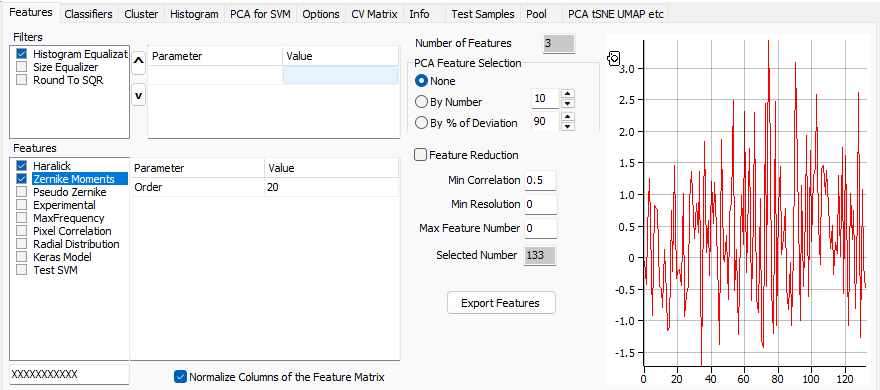
Click the name of a filter or feature to see its parameters in the table beside it; tick its box to use it. Type a new value and press Enter; double-click a True/False value to change it.
The chart on the right draws the feature vector of the active colony, and the Pseudo tab shows its image after the filters, so that you can see what a change does at once. Number of Features adds up the length of the vector as you tick.
On a new installation
Nothing is ticked, and the numeric parameters read 0. Set them when you first tick a filter or feature: they are remembered from then on.
A trained model carries its own filters and features: they come back to this tab when it is loaded, and classification uses them. See Saving and loading models.
Filters
Filters are applied from the top of the list down. Select one and move it with ^ and v.
| Filter | Parameters | Does |
|---|---|---|
| Histogram Equalization | None | Spreads the image's grey levels evenly over the whole range |
| Size Equalizer | Percent of total intensity (1 to 100, try 95), Threshold (1 to 255, try 1), Keep Center (True or False) | Finds the circle that holds that share of the image's intensity, counting pixels of at least Threshold, and scales the image so that the circle fills it. Without Keep Center the circle is centred on the bright part rather than on the image |
| Round To SQR | None | Unrolls the round image into a square, radius against angle |
Features
| Feature | Parameters | Numbers per colony | Calculates |
|---|---|---|---|
| Haralick | Distance, Number of Levels (2 to 64) | 13 | Haralick's texture measures, from how often pairs of grey levels occur at that distance |
| Zernike Moments | Order (1 to 100) | Grows with the order | The Zernike moments of the image, up to that order |
| Pseudo Zernike | Order (1 to 100) | Grows with the order | The same with pseudo-Zernike polynomials |
| Experimental | None | 257 | From the frequency content of the image. A research feature |
| MaxFrequency | Features Count (5 to 1000) | Twice the count | From the Fourier transform of the image unrolled, as with Round To SQR |
| Pixel Correlation | Max distance, Distance Step, Grey levels (2 to 64) | One per distance | The correlation of pixels with their neighbours, at distances 1, 1 + step and so on up to the maximum |
| Radial Distribution | None | One per radius | The intensity against the distance from the centre |
| Keras Model | Model | The model's output | The output of a neural network saved as a .json file in %APPDATA%\Baclan\Keras |
| Test SVM | None | 3 | Made-up numbers, for testing the classifier |
From features to the classifier
After the features of all the colonies are calculated, three optional steps shrink the vector before the SVM sees it. They happen in this order.
1. Normalize Columns of the Feature Matrix
Subtracts each feature's mean and divides by its standard deviation, over the training colonies, so that a feature with large numbers does not drown the others. It also decides whether the chart on this tab shows normalised values. Keep it ticked unless you have a reason.
2. Feature Reduction
Tick Feature Reduction to drop or merge features:
| Setting | Effect |
|---|---|
| Min Correlation | Features correlated above this value, over the training colonies, are merged into one |
| Min Resolution | Keeps the features whose resolution is at least this value. A feature's resolution is the largest, over all pairs of classes, of the distance between the two class means divided by the sum of their standard deviations |
| Max Feature Number | If not 0, keeps this many features, those of the best resolution, and Min Resolution is ignored |
If no feature reaches Min Resolution, Baclan says what the best one reached and keeps them all.
3. PCA Feature Selection
| Choice | Effect |
|---|---|
| None | The features go to the classifier as they are |
| By Number | The classifier gets this many principal components |
| By % of Deviation | The classifier gets as many principal components as it takes to reach this share of the variance |
After training, Selected Number shows how many numbers per colony the classifier got. With By Number the share of the variance they cover is filled in, and the other way round.
Export Features
Export Features calculates the features of the Training Set in Training Mode, or of the Test Set in Test Mode, and writes them to a text file you name: for each plate a line naming it, a heading, and one line per colony, with its name, diameter and features separated by commas. In Training Mode each class starts with a line naming it. The numbers are as calculated, before the steps above.
The masked box
The masked box under the Features list is for the developers.