Connecting to a database
BacBuster saves plates to a MySQL or MariaDB server, where Baclan, ExpManager and other
instruments reach them too. The database in use is named on the toolbar, in yellow - for example
/labserver/lab/bardot: server labserver, user lab, database bardot.
Choosing a database
Click the yellow label. The Database Connection window lists the servers, the users on each, and the databases each user can see.
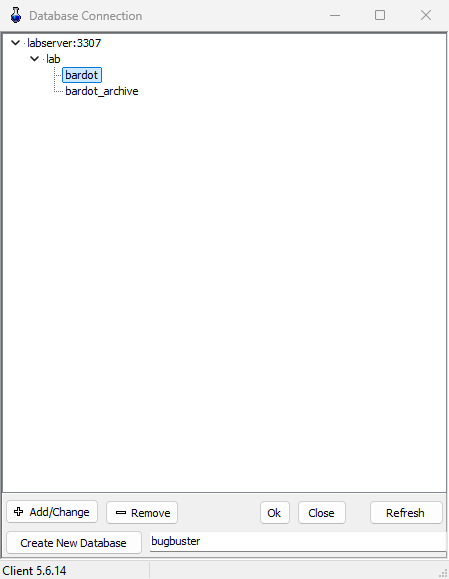
| Button | Does |
|---|---|
| Add/Change | Opens the Connection Editor for a new server, or for the one selected |
| Create New Database | Makes a database with the name in the box beside it, for the selected server and user, with the tables BacBuster and Baclan need |
| Remove | Forgets the selected server or user, after asking. The databases stay on the server |
| Refresh | Asks the servers again which databases each user can see |
| Ok | Uses the selected database. A double-click does the same |
| Close | Leaves things as they were |
The Connection Editor asks for the server's Host (name or address), its Port (usually 3306), the User and Password, and optionally a Host Short Name to show in place of the address. Test tries the connection; Ok adds it to the list.
The list is shared with Baclan and ExpManager on the same computer: a server added in one is there in the others.
Passwords are stored
The connections, passwords included, are kept in %APPDATA%\BaclAn\Servers.dat, so that
BacBuster can connect by itself at start-up. Use accounts with no more rights than they need.
At start-up
BacBuster connects to the database on the label when it starts. If it cannot - no database chosen, server down, network gone - the red warning button appears on the toolbar with the hint Default Database Is NOT Set or Connection is lost. Plates can still be scanned and saved to files; click the label to choose a database that works, and click the warning button to dismiss it.
Database Options
Database Options on the Options tab opens the Manager, for whoever looks after the
server. It logs in as the server's root user:
| Control | Does |
|---|---|
| Host, Port, Root Password, Connect | Log in to the server |
| Users, Global Privileges | The server's accounts and the selected one's rights |
| New User Name, Password | With Create Read Only User or Create Full Access User: make an account |
| Change Password, Delete User | For the selected user |
| Databases Read Only, Databases Full Access | Tick databases and click Read Only or Full Access to give the selected user those rights |
| Init | Recreates Service Table. Does NOT erase data. |
| Apply Updates (Full Access List) | Brings the ticked databases up to the current table structure |
| Update Colony Thumbs | Makes the small colony pictures in the ticked databases; Stop Update stops it |
Warning
Back the server up before changing the structure of its databases.