Plate information and saving
Save plate on the toolbar opens the Plate Info dialog: the plate's description, and the buttons that save it.
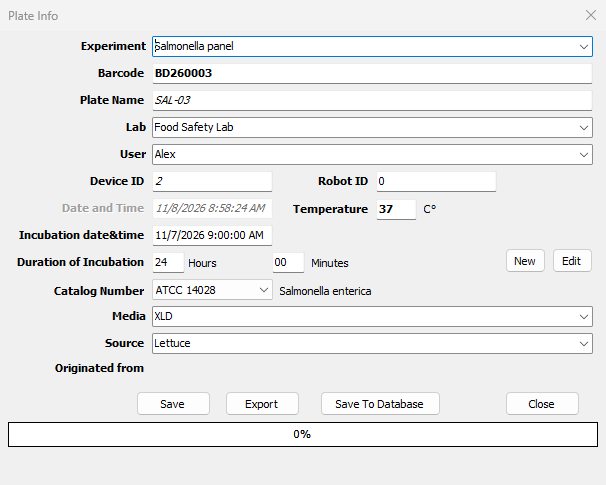
The plate's description
| Field | Meaning |
|---|---|
| Experiment | The experiment the plate belongs to. The list holds the experiments in the database; type a new name to start a new experiment |
| Barcode | The barcode on the dish, if it has one. A barcode scanner fills it - see below |
| Plate Name | Required. Names the plate in the database, the file or the folder |
| Lab | The laboratory |
| User | Required. Who made the plate |
| Device ID, Robot ID | The instrument that scanned it, filled in by BacBuster |
| Date and Time | When the plate image was taken |
| Temperature | Incubation temperature, °C |
| Incubation date&time | When the dish was plated |
| Duration of Incubation | Hours and minutes from plating to scanning. Click into it and the labels show the duration the two dates give |
| Catalog Number | The organism, chosen from the database's list; its name shows beside it |
| Media | The medium |
| Source | Where the sample came from |
| Originated from | Click to choose the colony, on another plate, that this plate was grown from |
Lists come from the database on the toolbar, so they are empty when there is no database. The dialog keeps what you typed for the next plate.
Organisms
New opens the Organism dialog to add an organism: its Catalog Number and its Genus, Species, Subspecies, Serotype, Pathotype, Resistance and Pathogenicity. Each list offers the names already in the database; type a new one to add it. Edit changes the organism chosen. Both need the database.
Saving
| Button | Saves to |
|---|---|
| Save To Database | The database on the toolbar - see below |
| Save | A .plt file, in a folder you choose, which Baclan opens |
| Export | A folder named after the plate, inside a folder you choose: the plate image, one PNG per colony, the colony table SCV.txt, the coordinates ColonyXY.csv and the plate's description METADATA.txt. This is the folder format Baclan reads |
| Close | Nothing: closes the dialog without saving |
The dialog checks the fields first: Plate Name contains forbidden characters or is empty, Enter User Name please and similar messages say what to correct.
With HDR images the HDR set is saved alongside: a second
plate <name>_HDR in the database, a second file <name>_HDR.plt, or a second image per colony
in the export.
Saving to the database
The plate, its image and every colony's scatter image are written to the database. Plates already there are recognised:
- A plate planned in ExpManager with the same name, barcode, user and experiment, and still empty, is replaced by this one - see Planned plates.
- If this very plate was saved before, BacBuster asks: Replace Entire Plate writes it again, colonies and all; Replace Plate Info only updates its description; Cancel leaves the database alone.
Not connected to Database means the database on the toolbar could not be reached.
Unattended runs
When a Cytomat run cannot save a plate to the database, the plate is written to
C:\BacBuster\Emergency\ as a .plt file instead. In a Cytomat run or a Test Drive a
plate that was not saved also brings up the red warning button on the toolbar and sends the
e-mail alert. See Troubleshooting.
Barcodes
A barcode scanner works anywhere in BacBuster: scanning the label of a planned plate fills its description from the database. In the Plate Info dialog, scanning a barcode fills the Barcode field and, if a plate with that barcode is in the database, copies its description too.
Unsaved plates
Taking a new plate image, scanning, clearing or closing BacBuster while the plate's scatter images have not been saved brings up Plate "..." is not saved. Would you like to save it? - Yes opens the Plate Info dialog, No discards the plate, Cancel goes back.